Papyrus is an open-source software engineering tool for modeling systems analysis and design. It supports unified modeling language but allows customization to create domain-specific modeling language elements. It is a part of Java Eclipse ecosystem and so can be installed inside Eclipse or as standalone. It is available in Windows, MacOS, and Linux.
Install Standalone Version
The standalone version can be downloaded at https://www.eclipse.org/papyrus/download.html. The package comes with JDK 11 included, like Oracle SQL Developer, and so there is no need to separately install JDK.
- After downloading, open the zip file and extra the content to anywhere you like.
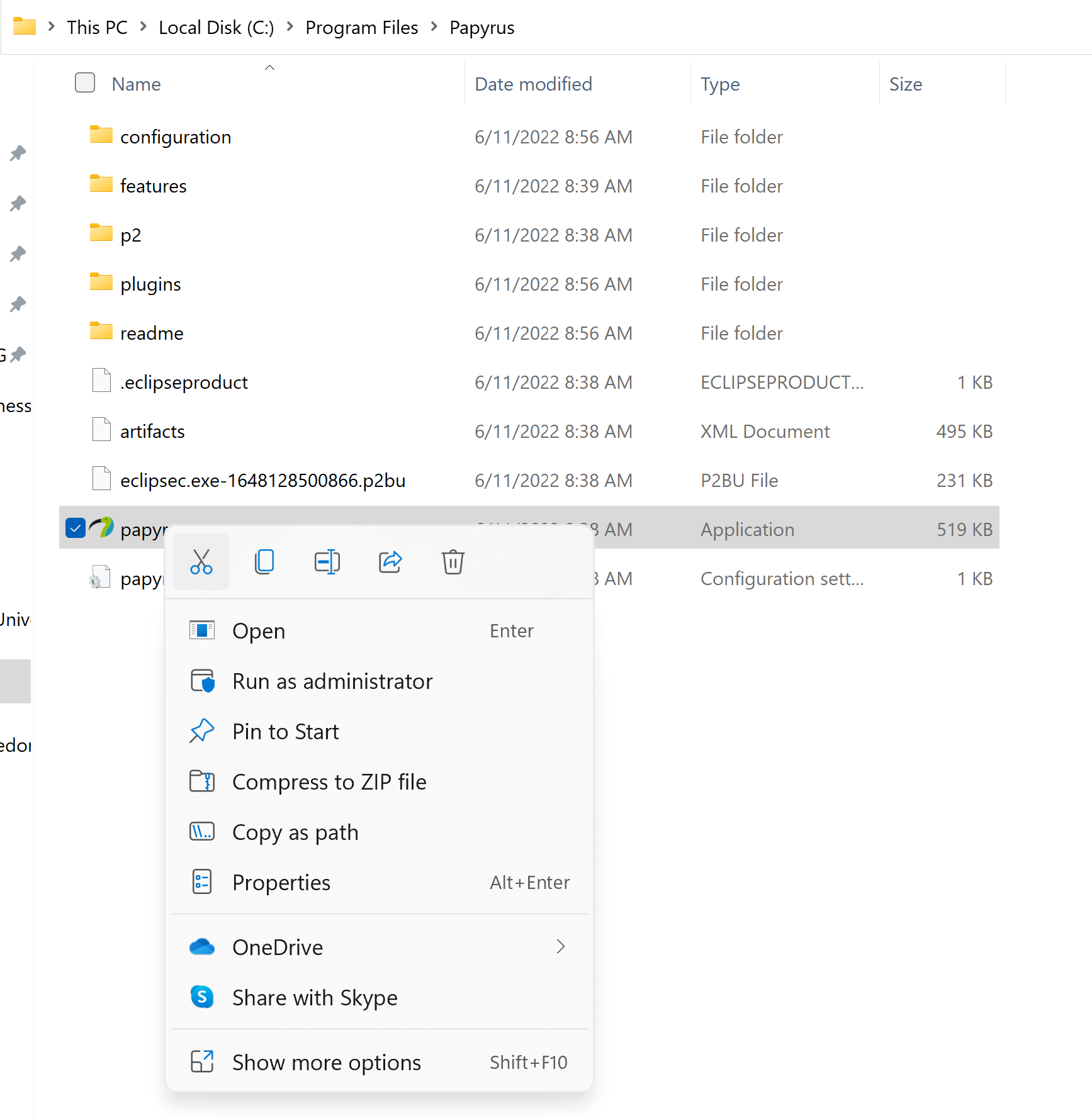
- Open the extracted folder, right mouse click on Papyrus.exe file (see photo below) and choose Pin to Start.
- You can then run Papyrus as any program by going to Windows start menu. The first time you run it, you may encounter a warning from Windows Defender, click on "More info" link and press "Run anyway" button.
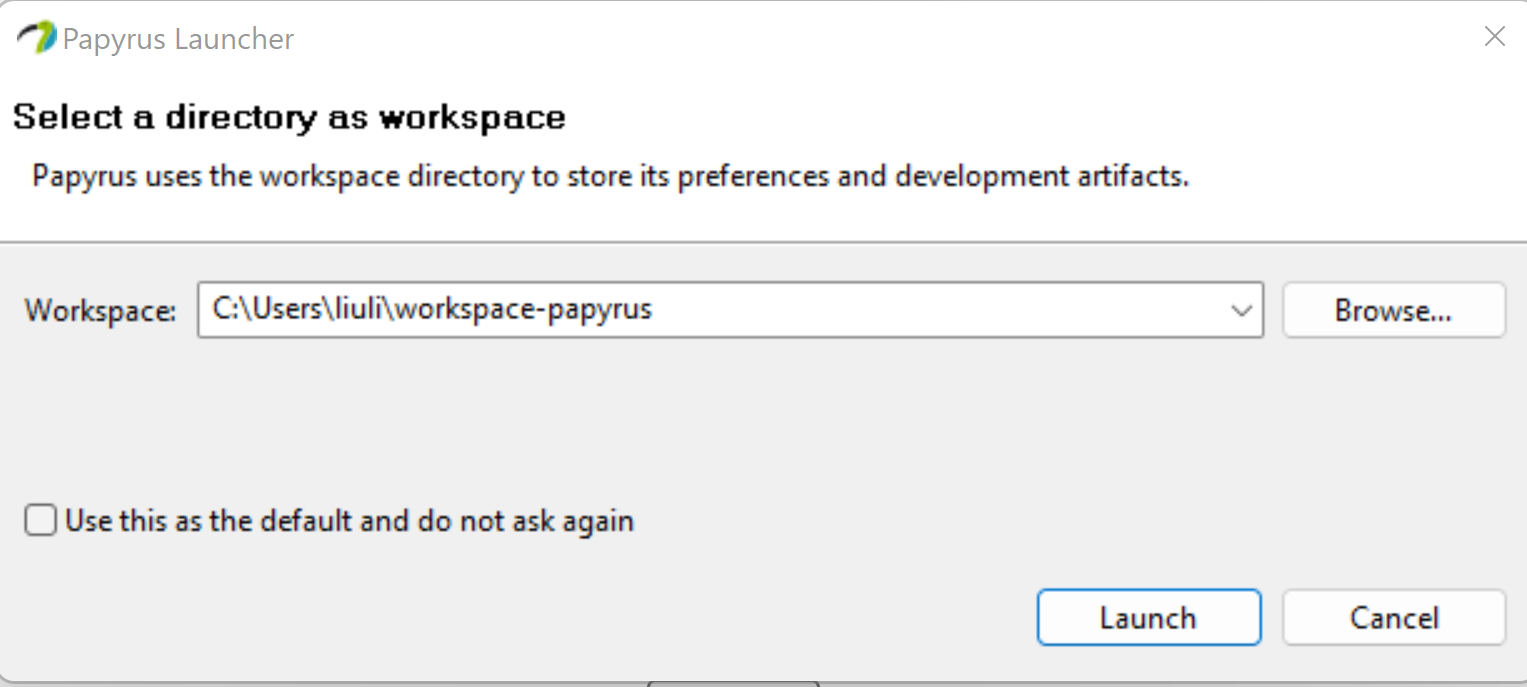
- Then set your working space director and press "Launch" button to run it.
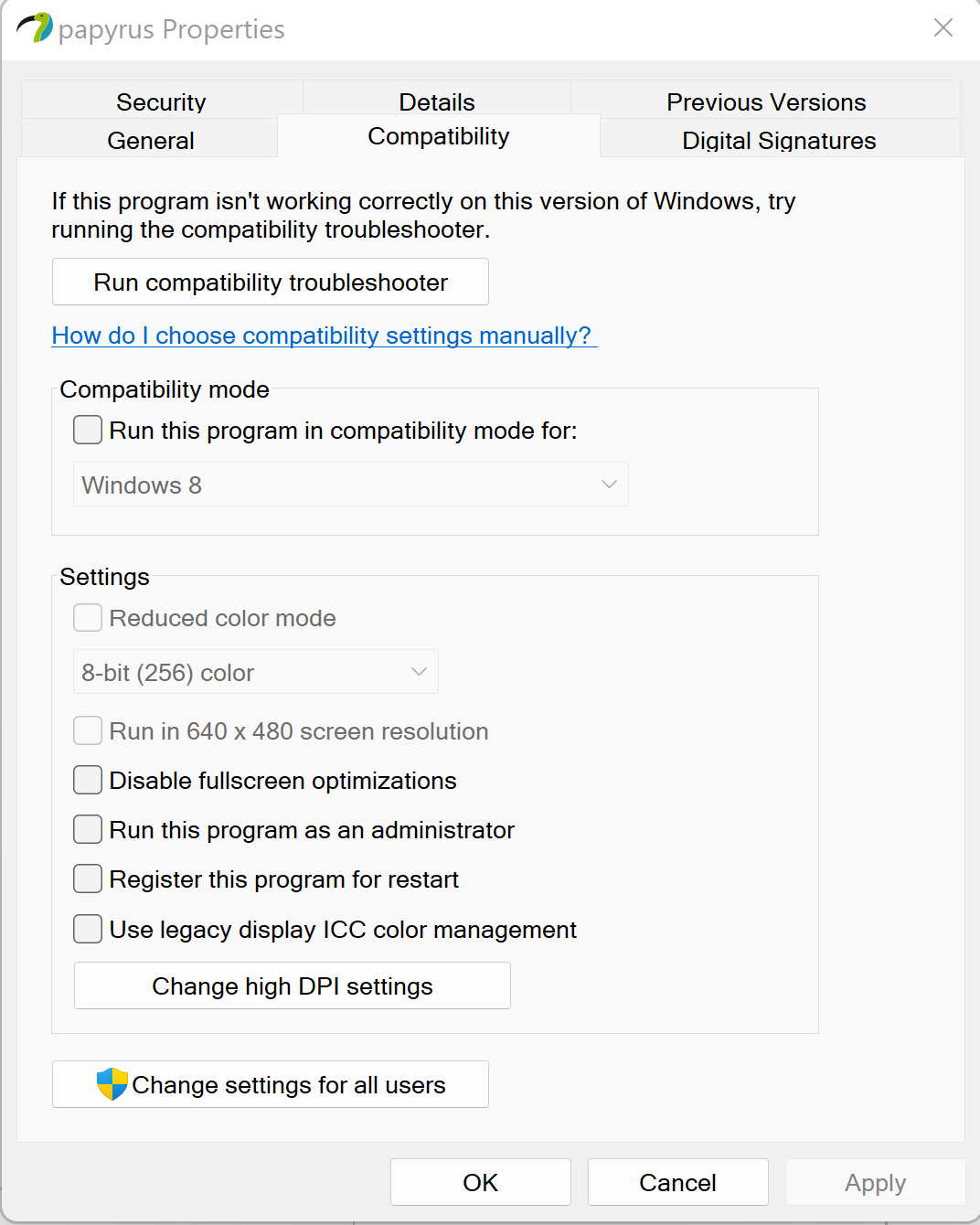
- If you have high resolution monitor and see the fonts too small, you can fix it by adjusting high DPI settings. Again, right-mouse click on papyrus.exe file inside the extracted folder and choose Properties. Then click on Compatibility tab (see below)
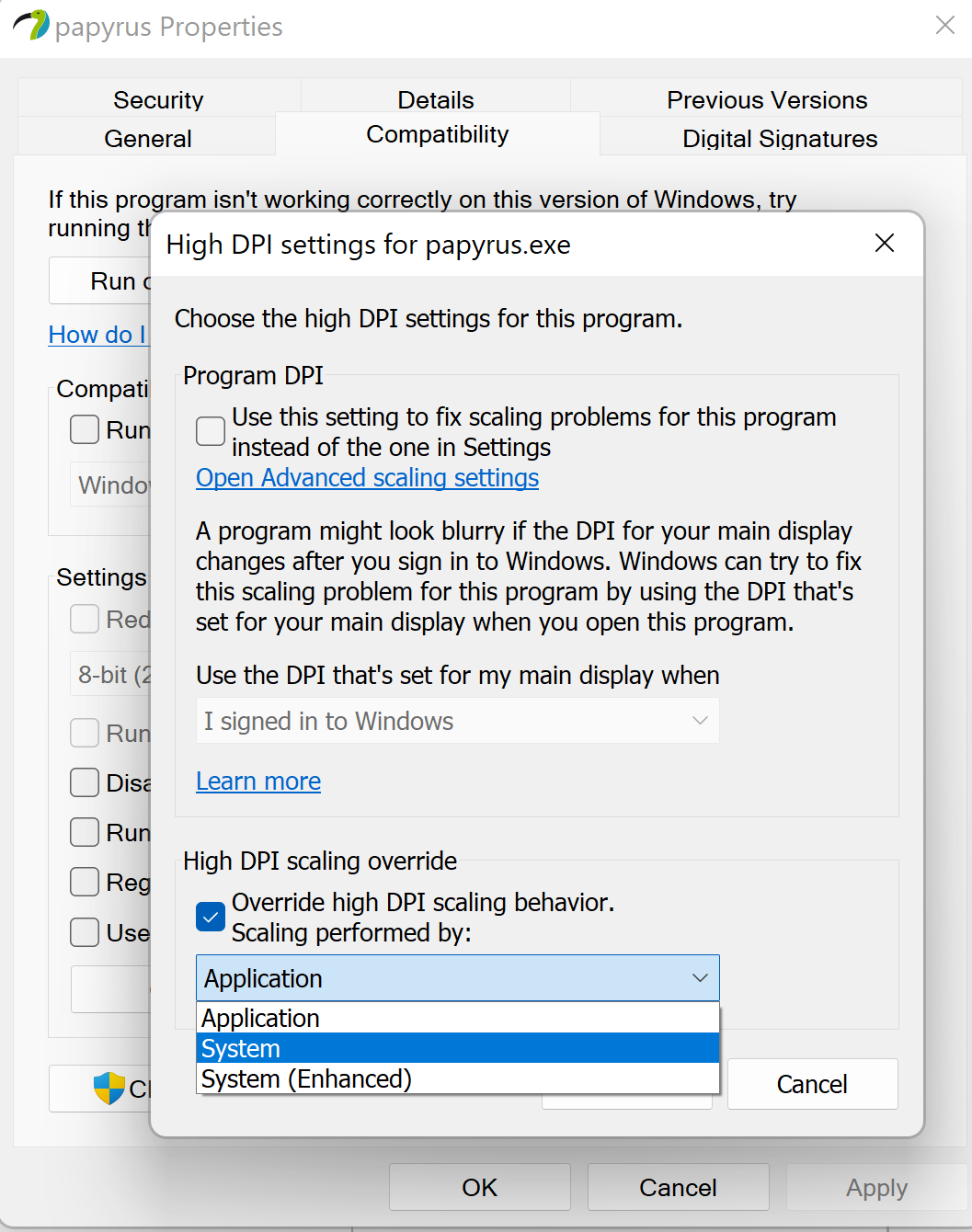
- Then, check "Override high DPI scaling behavior" checkbox and select System in "scaling performed by" combo box.
Install Papyrus inside Java Eclipse
Download the installer from https://www.eclipse.org/downloads/.
The installer will install JDK.
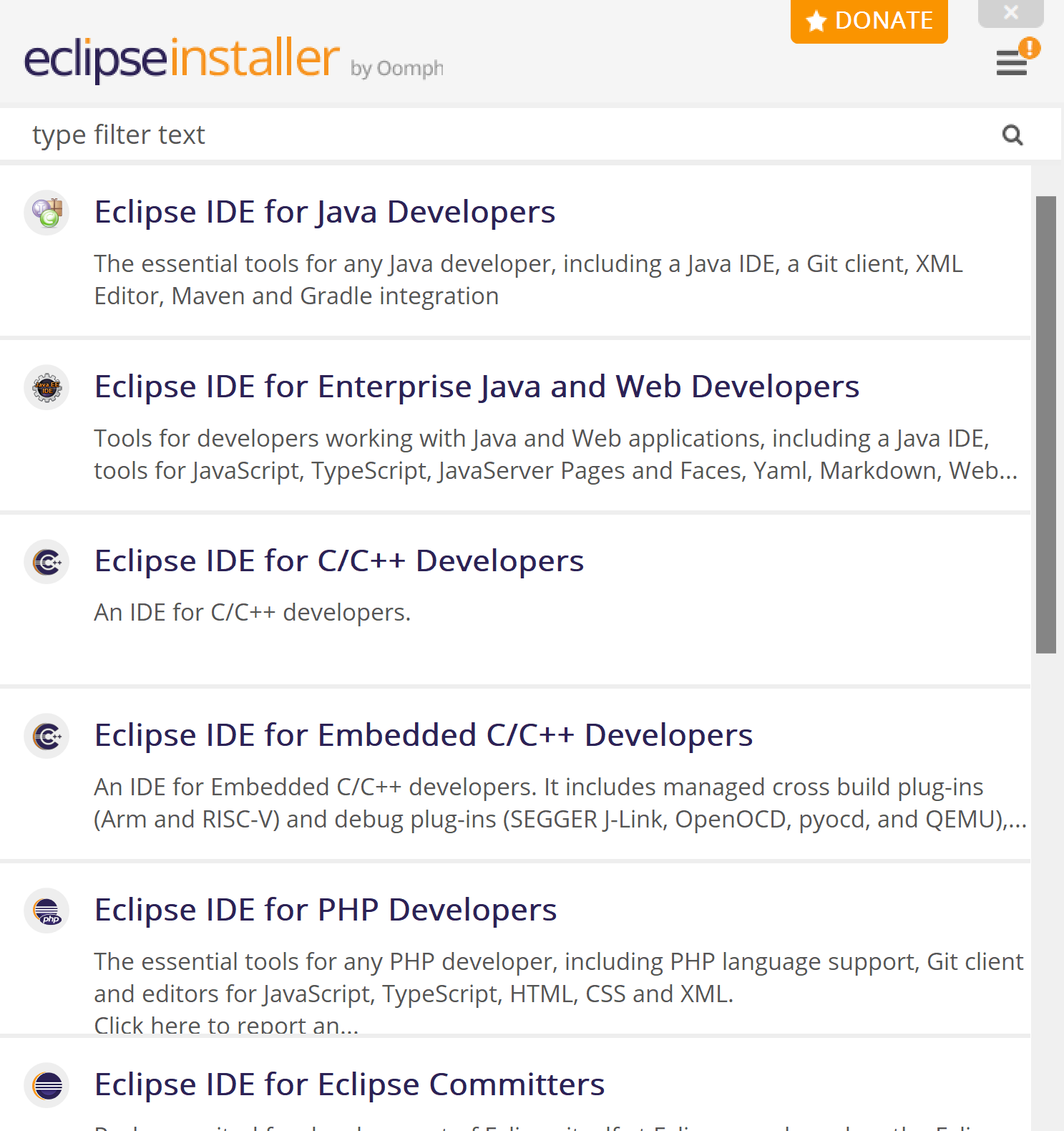
Launch the installer and choose the installation type. To learn java programming, choose IDE for Java Developers. To support JSP and Java Servlets, in the following we choose IDE for Enterprise Java and Web Developers.
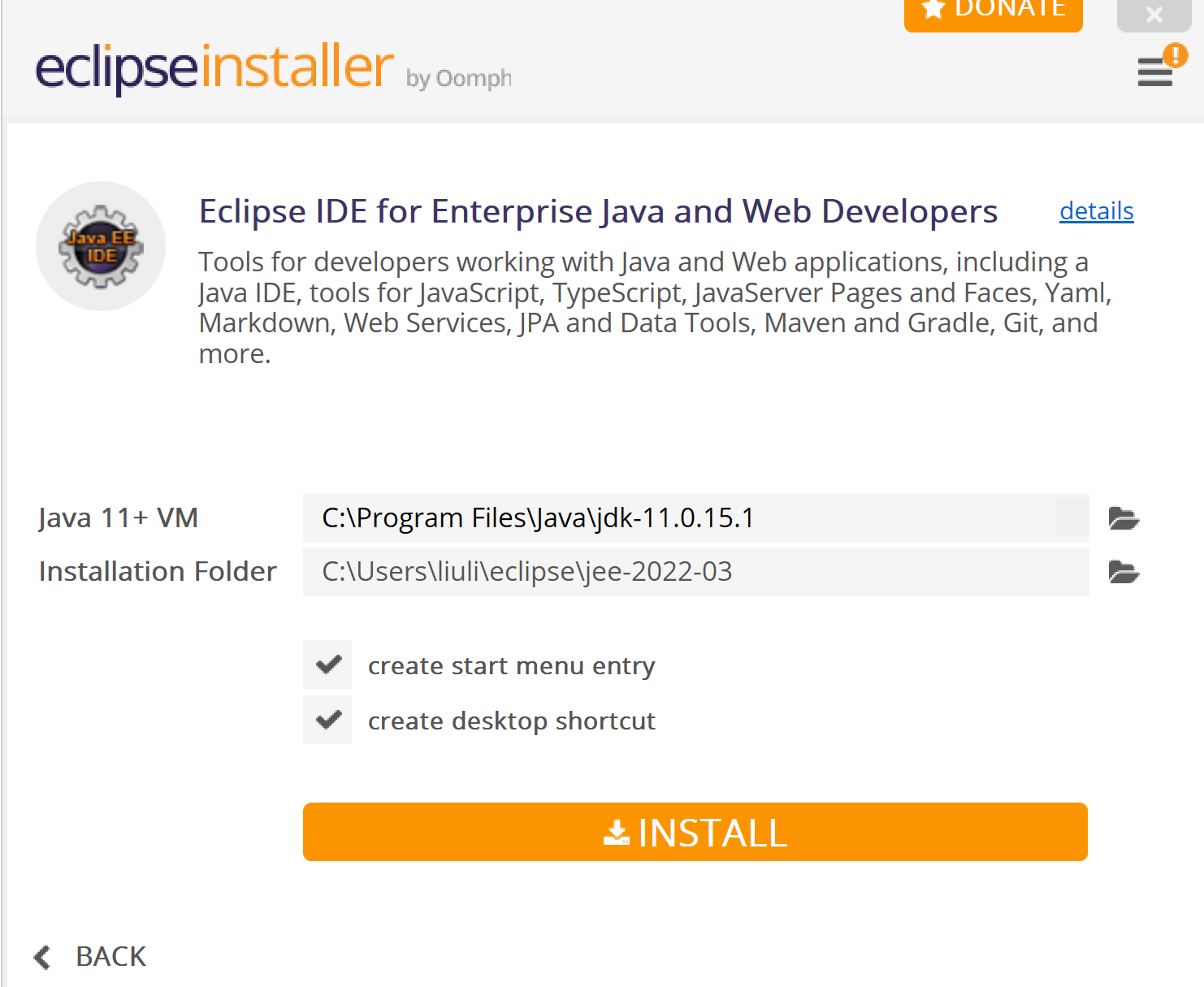
If you already have JDK installed, the setup will show the existing JDK for Java VM. Otherwise, select a version of JDK to install as prerequisite for Eclipse installation. Since we choose to install IDE for Enterprise Java, additional EE files will be installed in Installation Folder. Press Install button and accept Eclipse Foundation license agreement to continue.
Go to https://download.eclipse.org/modeling/mdt/papyrus/updates/releases/ and click on the release version of Papyrus that you want to install. Copy the address. For example, for the release version 2022-3, the address is https://download.eclipse.org/modeling/mdt/papyrus/updates/releases/2022-03/
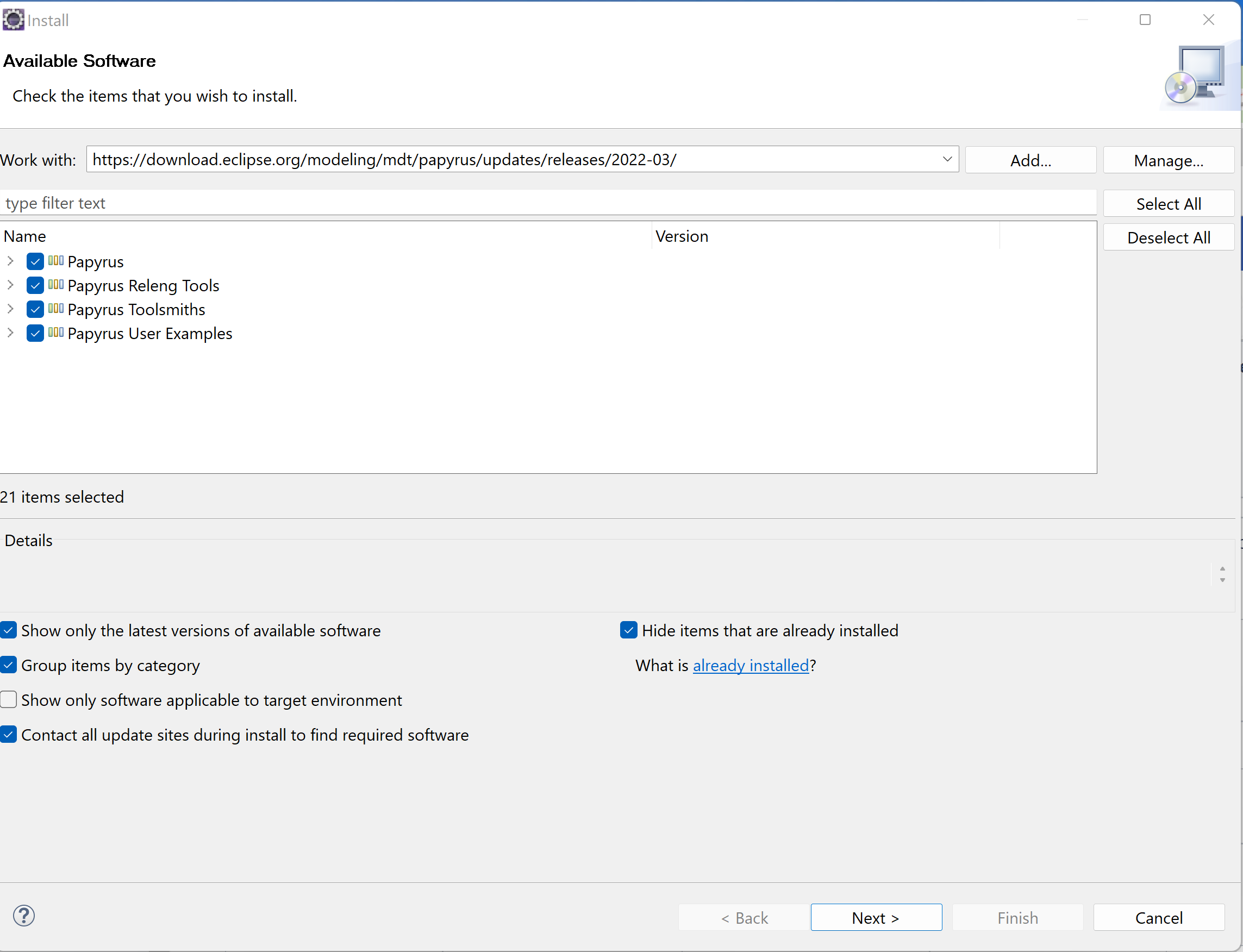
Launch Eclipse and go to Help --> Install New Software, enter the web address you copied above to here to add the web site. Then you will see the available programs for Papyrus as follows. Select one or more of them to move on. Select Eclipse Foundation agreement to finish installation. In a while, it will ask you whether to trust a few components. Select the one you trust and move on.
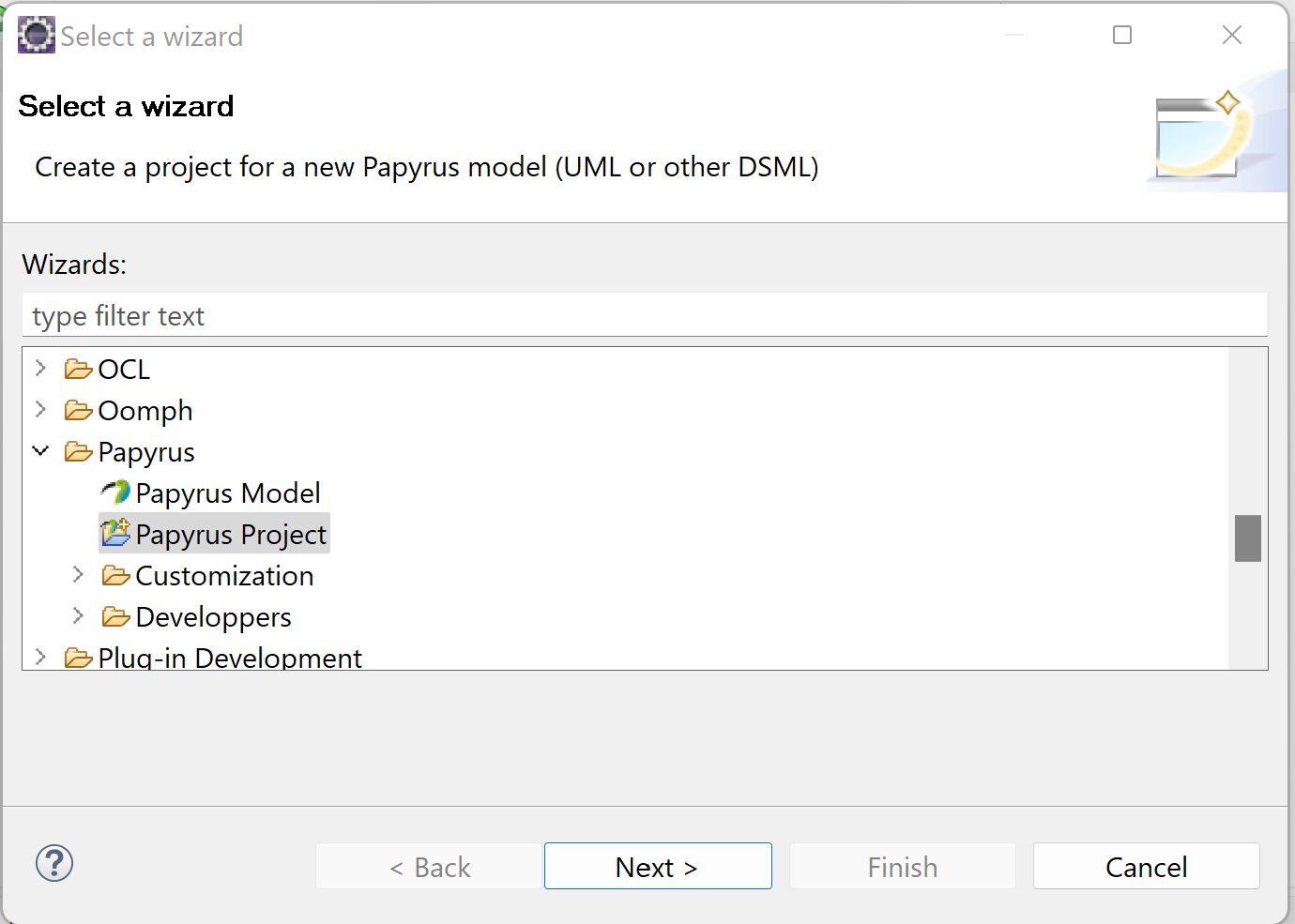
After finishing the installation, go to File --> New --> Others, and select Papyrus Project to launch Papyrus inside Eclipse.
|